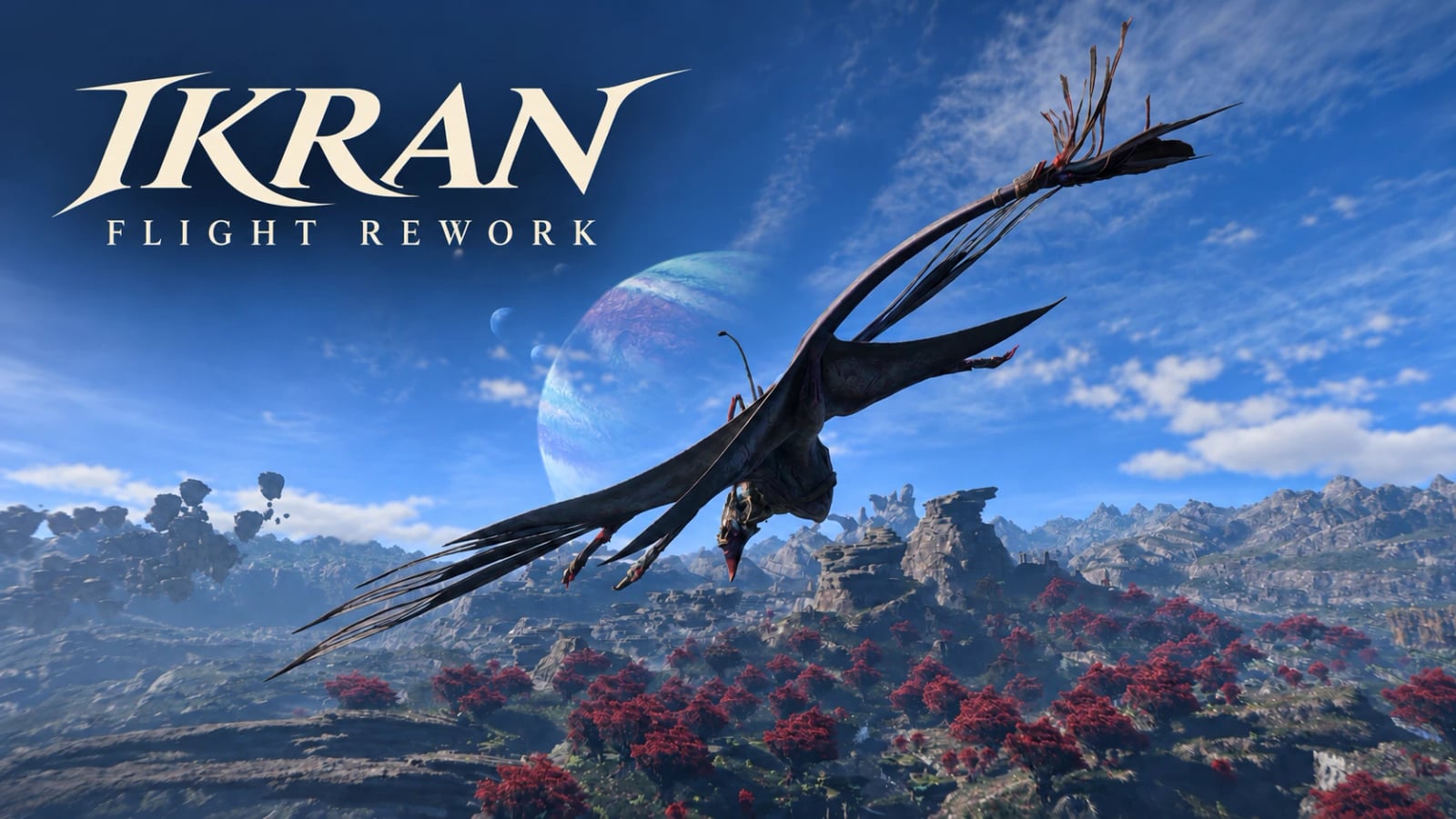
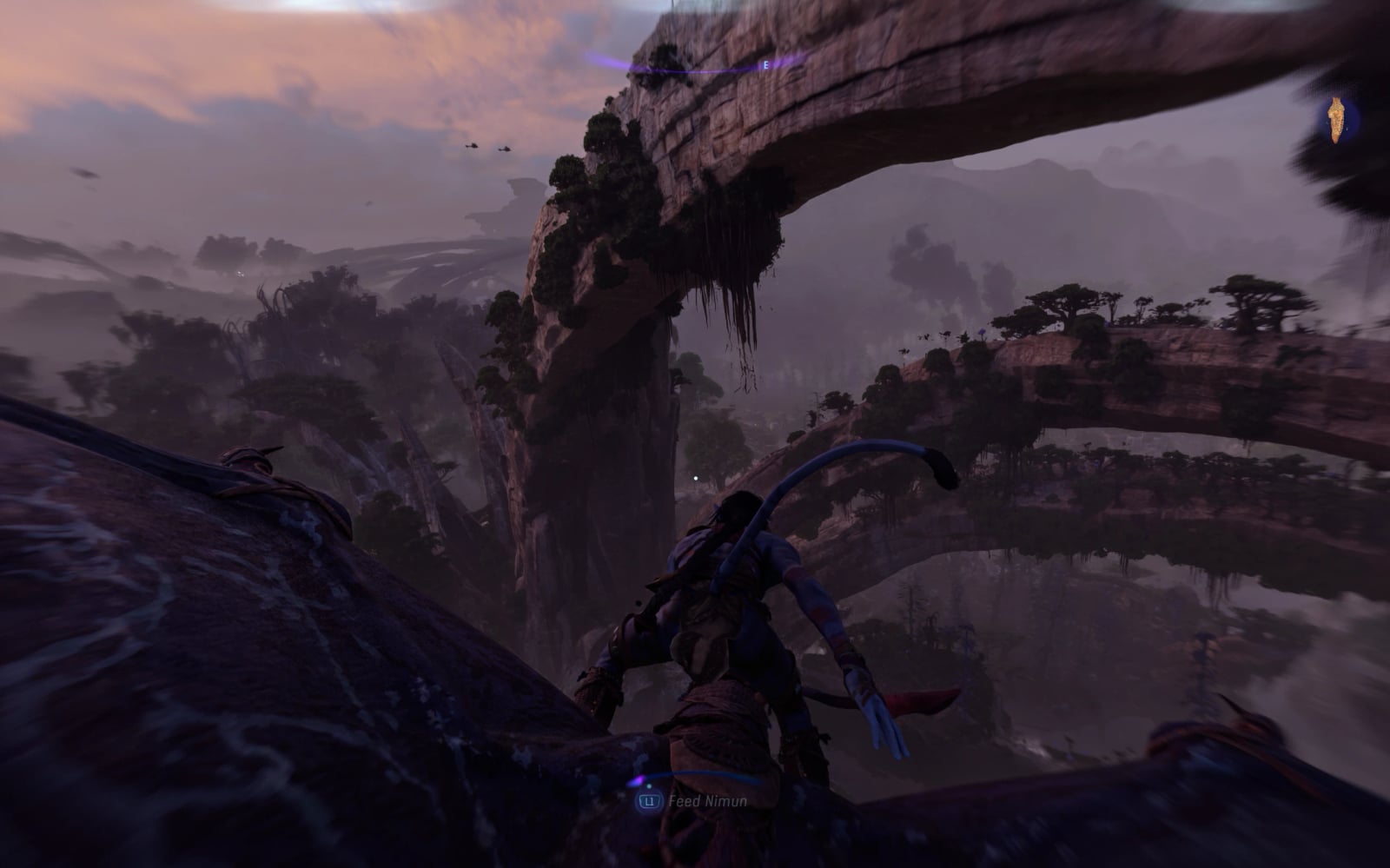
YVLjusteezy’s Ikran Flight Rework (0.8.5) v0.8.5
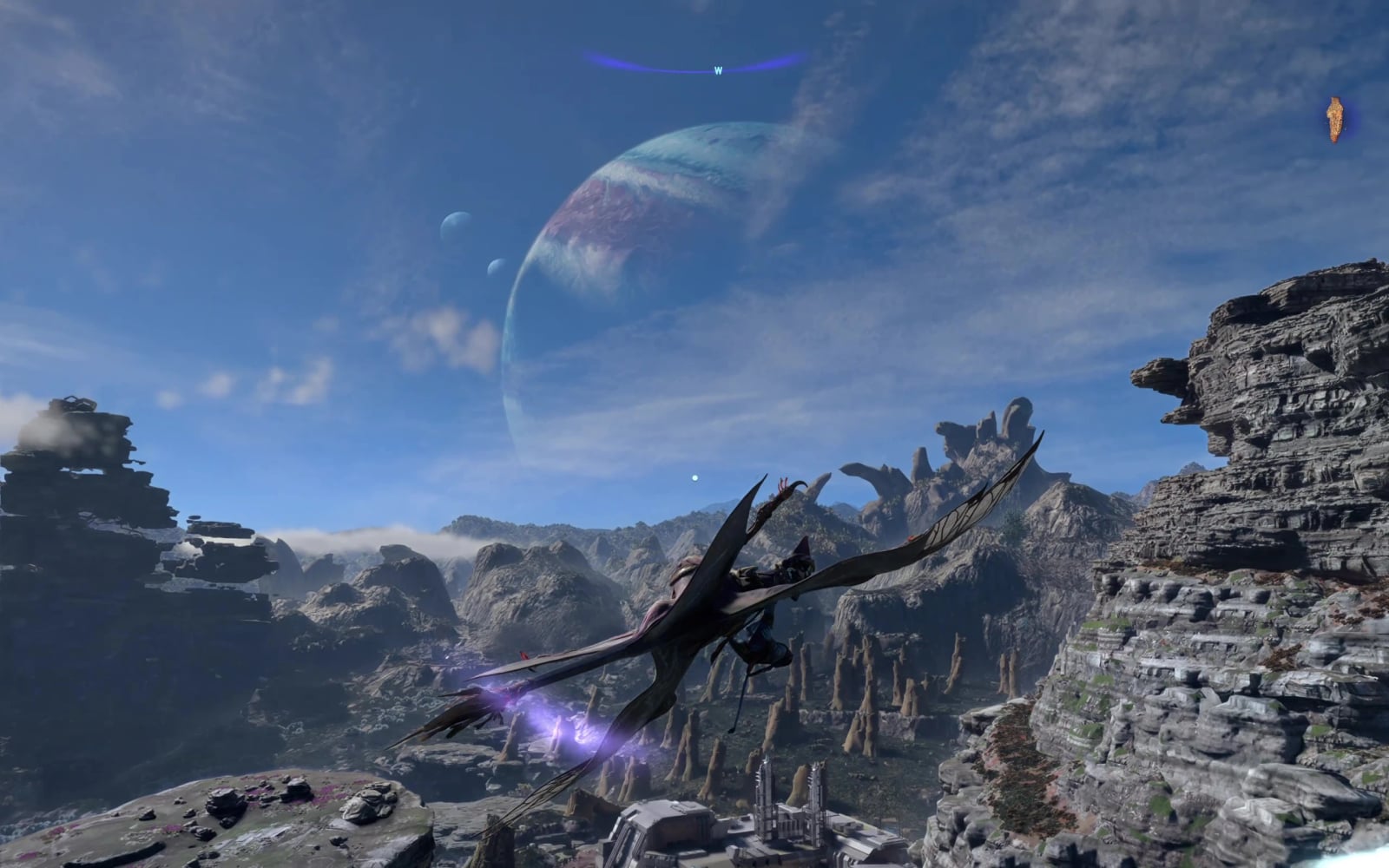
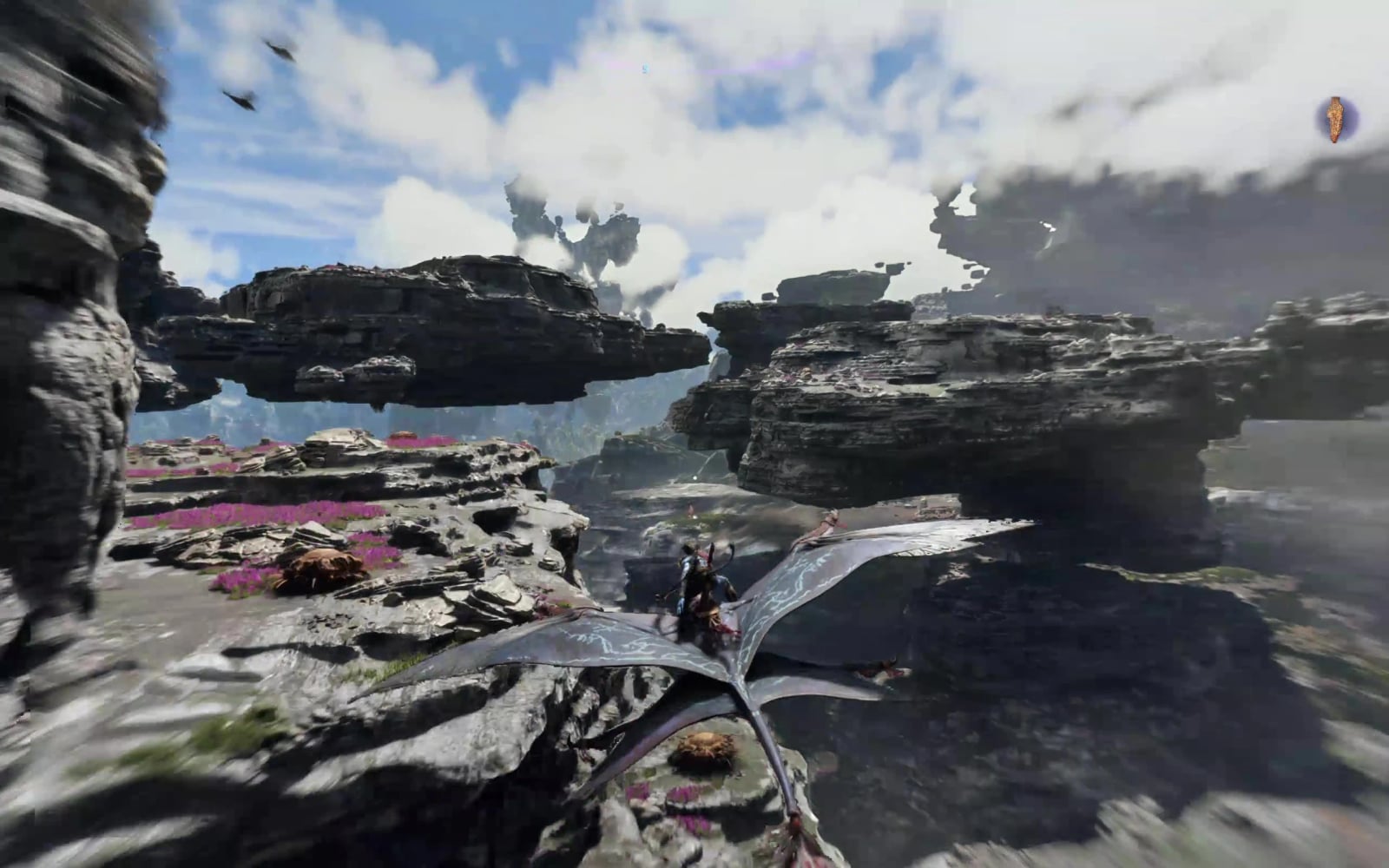
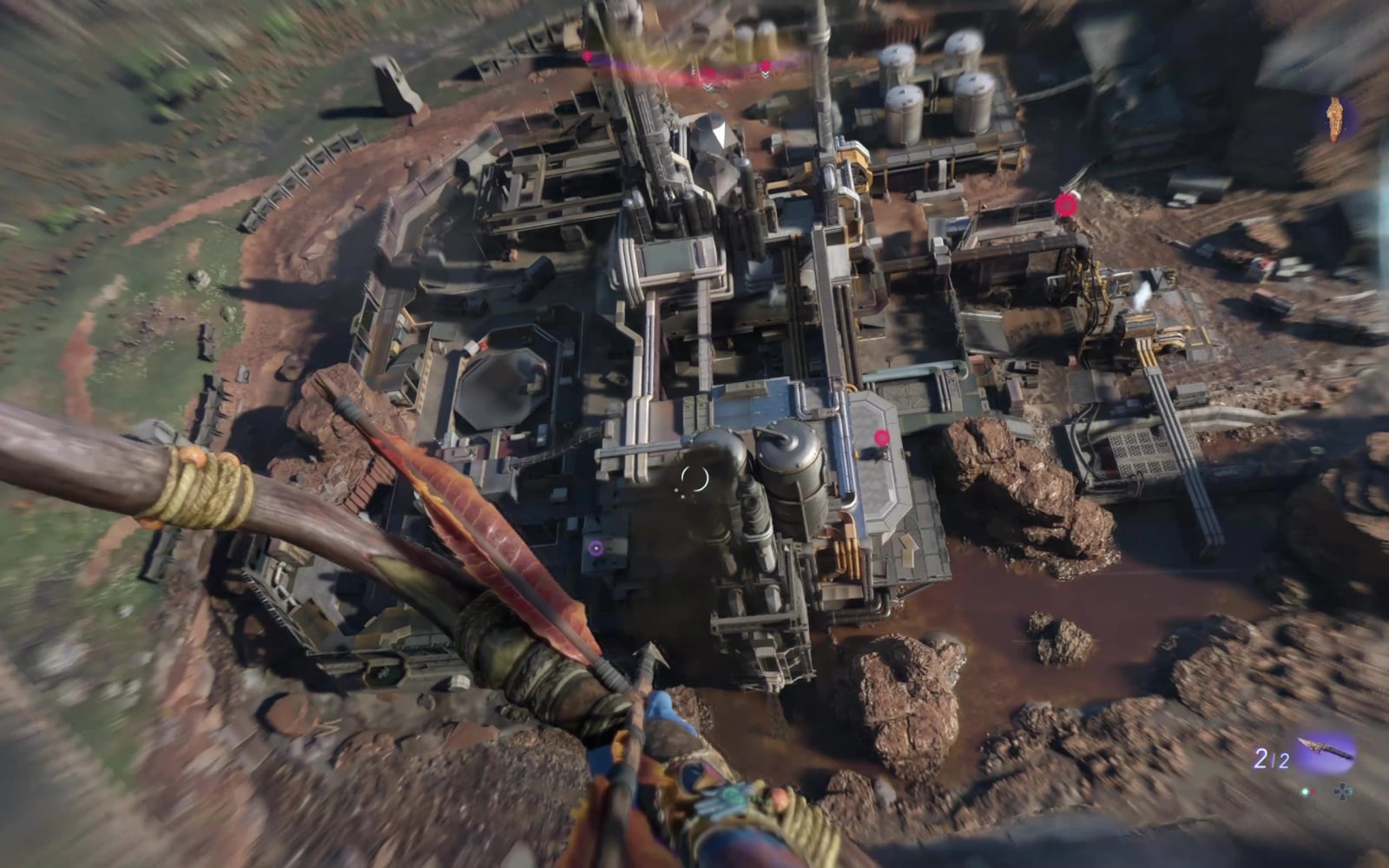
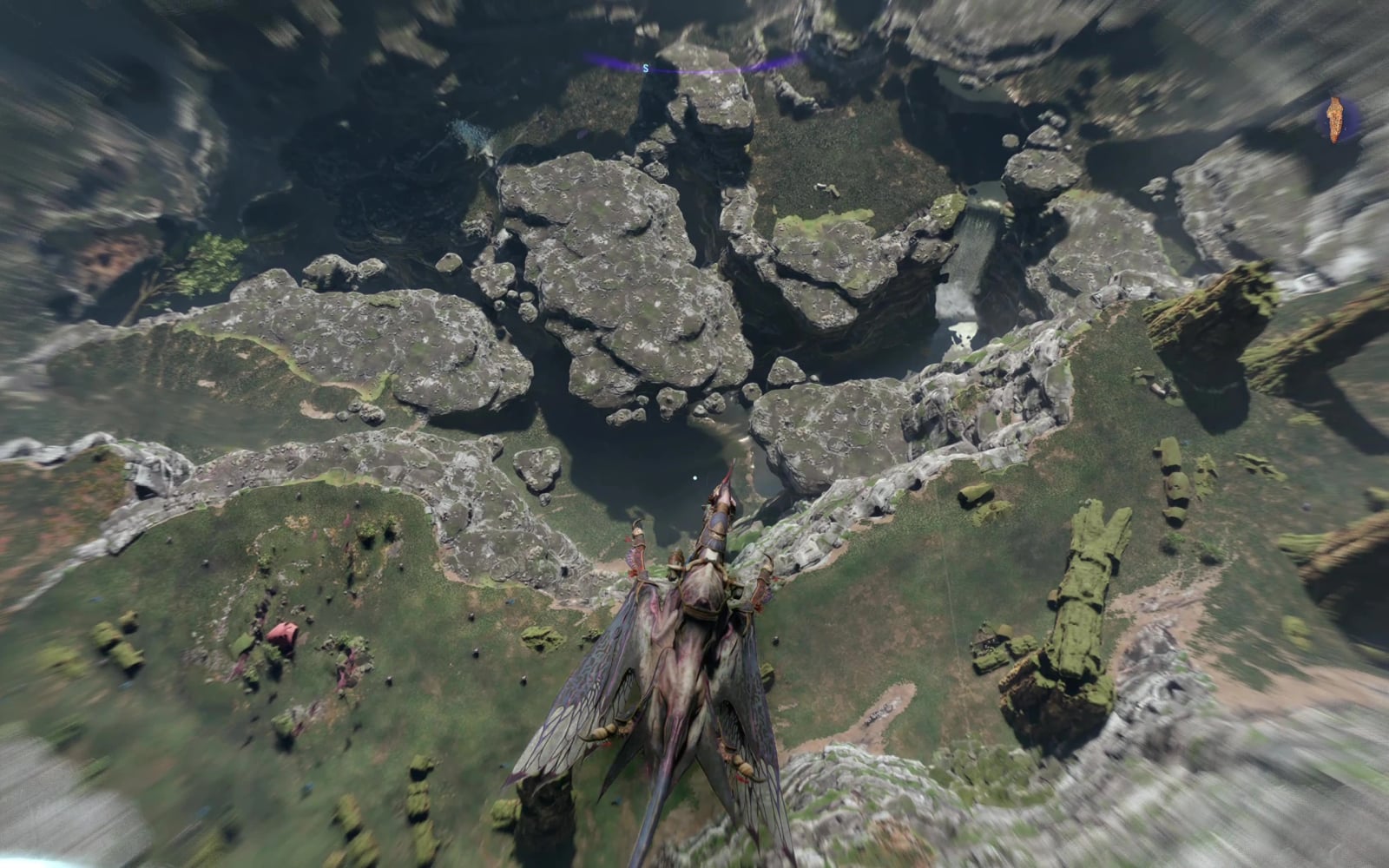
Flight Rework replaces the base game’s ikran flight with its own flight physics, which run inside the game every frame. Lift depends on airspeed, gravity pulls the ikran down, dives build speed and a climb that runs out of speed ends in a stall.
Keyboard and mouse are supported, but a controller is the best way to experience the mod.
Features
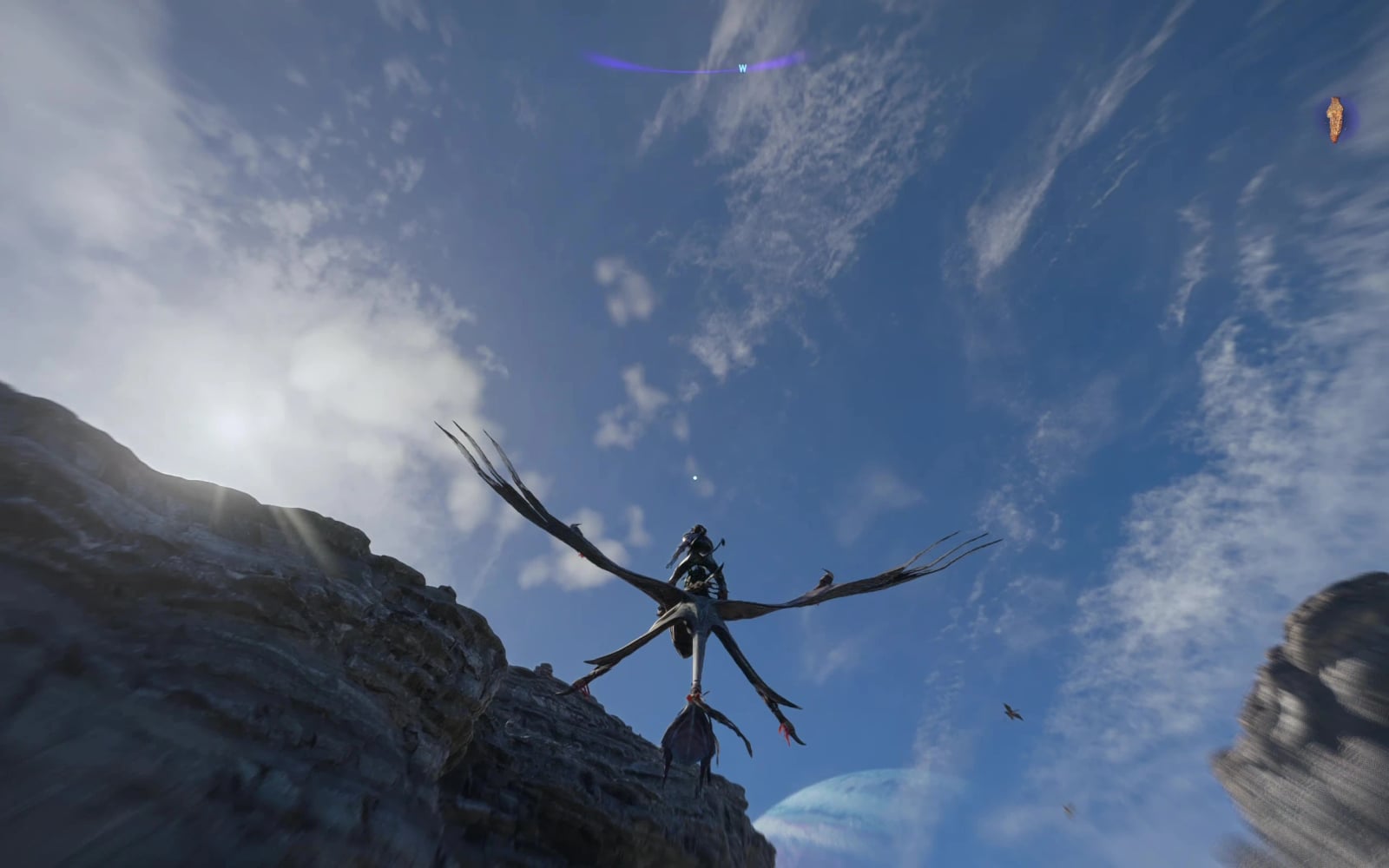
- Pitch, roll and yaw have no angle limits, so loops, barrel rolls and inverted flight all work. The wings and body react to turns and pull-ups.
- You can switch back to the game’s own steering at any time. F10 has four handling modes, from Agile, the quickest, to Legacy, the heaviest.
- Flapping builds speed, while climbs and hard turns use it up.
- Steep dives build speed that can be carried through the pull-out. If you climb until you run out of speed, the ikran stalls, hangs for a moment and drops into a dive.
- Folding the wings removes lift and leaves limited pitch control.
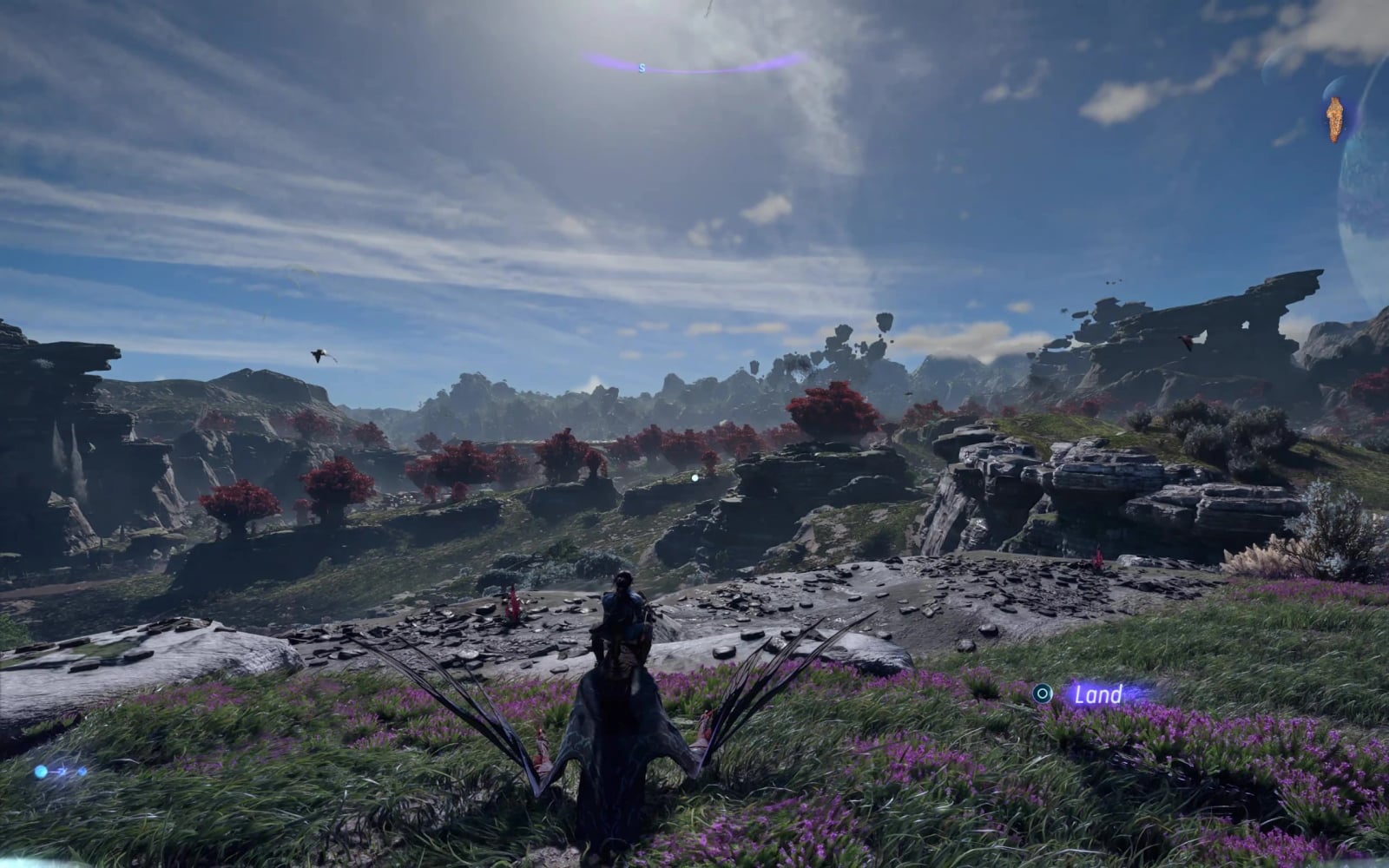
- Braking brings the ikran into a hover facing the reticle. Move around with the movement controls, then flap to fly off.
- Walk and steer before taking off, and stay seated after landing, with smoother ground movement, small-step clearance and slope grip.
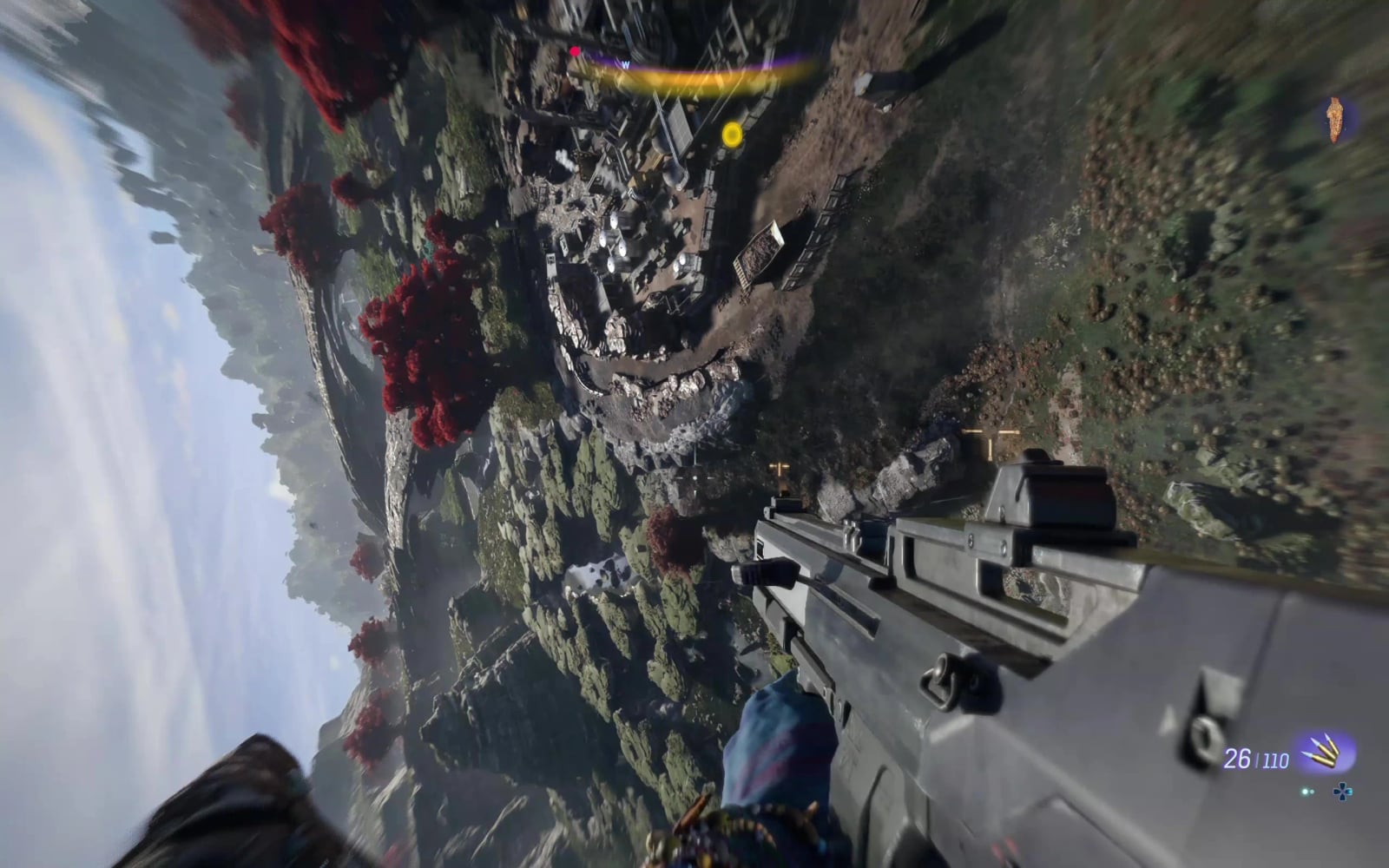
- Three third-person distances, follow styles that keep the camera behind the tail through climbs, dives and banks, a cinematic camera, and first person with weapons while flying.
- Controller and keyboard are fully supported, with rebindable keys and buttons in F10.
- Stamina, feeding and the game’s own animations still apply.
- The mod checks the game code it changes before it starts, and stays off on a game version it doesn’t recognise.
- Steam, Ubisoft Connect and Ubisoft+ are supported.
Specifications
- Speed range: 1.0x to 2.6x, 2.2x by default, or the faster 2.67x+ setting.
- Handling presets: Agile, Default, Weighty and Legacy.
- Camera follow styles: Free, Chase, Locked and Rigid.
Switching flight modes
Controller: hold RT (R2) + briefly press D-pad Down. Release Down before RT. Switching into aircraft flight needs some forward speed; it won’t switch from a hover.
Keyboard: F8, also while you’re playing on a controller.
Controller controls
Xbox names are listed first, with PlayStation names in brackets.
- Left stick left/right: roll. Up pitches the nose down; down pitches it up.
- LB / RB (L1 / R1): yaw left / right.
- Tap A (Cross): flap, take off or leave hover. Release the brake before leaving hover.
- Click the left stick (L3): fold the wings. Click again or flap to reopen them. A settled steep dive also allows a normal pull-out.
- Hold RT (R2): brake into hover. When aiming with LT (L2), RT fires your weapon without braking.
- Right stick: camera. LT (L2) keeps its free-look/weapon aiming function.
- Tap D-pad Down: cycle close / medium / far / cinematic / first person. Hold Down for the marker wheel.
- Hold D-pad Left: weapon wheel. Hold D-pad Right: Na’vi senses. Short presses keep their normal actions.
- B (Circle): land; when grounded, dismount.
- Left stick in hover or on the ground: move/steer relative to the camera.
Press F10 in game to change the controller buttons for flap, brake, fold wings, yaw, camera and dismount, or to roll on the bumpers and yaw with the left stick. F10 also shows whether your controller was found. DualSense and Xbox-style controllers work. A DualShock 4 or other pad needs Steam Input or DS4Windows so it shows up as an Xbox controller.
Keyboard and mouse controls
- W / S: pitch down / up. A / D: roll left / right. Q / E: yaw left / right.
- Space: take off or leave hover. Hold Space to keep flapping. Release the brake before leaving hover.
- Left Shift: brake into hover. Left Alt keeps the native screech action. Caps Lock: fold/unfold the wings.
- Mouse: free look in aircraft mode, native steering in standard mode. Right mouse: aim. Left mouse: fire.
- Hold V: weapon wheel. While it is open, C switches food and holding F feeds the ikran. Middle mouse click: cycle close / medium / far / cinematic / first person. F8: switch flight modes.
- Left Ctrl: land; when grounded, dismount.
- WASD in hover or on the ground: move relative to the camera.
The pitch, roll and yaw mappings are for aircraft mode. On-foot controls stay as set in the game. The hunger prompt may still show Q/L1; use V or hold D-pad Left to open the weapon wheel.
Installation
Close Avatar before installing or updating. HOW TO INSTALL.txt is included as a guide; the mod does not need that text file to run.
Which download?
- Not sure, or no other mods? → RAINDROP. This setup avoids plugin INI editing. Steam and Ubisoft Connect are supported.
- Only if you already use Universal Snowdrop Modloader, with version.dll in your game folder, use SNOWDROP.
Never install both loaders.
Using Vortex
Vortex works with Snowdrop, not Raindrop.
- In Vortex, install Universal Snowdrop Modloader for Avatar. Don’t use Raindrop in Vortex, because Raindrop doesn’t load plugins from the folder Vortex puts them in.
- In the Files tab, click Mod manager download on both Flight Rework 0.8.5 Vortex Plugins and Flight Rework 0.8.5 Vortex Data. You need both. The Raindrop and Snowdrop files don’t work through Vortex.
- Enable both in Vortex and deploy. In game, press Insert to change the settings.
- Vortex’s health check may say Raindrop is missing. You can ignore that.
Raindrop installation
RAINDROP: 4 steps
1. Download the loader and the mod.
- Raindrop, the loader, version 1.04 or newer. If you already have Raindrop from before, grab the latest one anyway and replace
dinput8.dllin step 3. Older versions load the blue folder but not the mod itself. - Flight Rework 0.8.5 Raindrop from the Files tab → Manual download
2. Open your game folder. It is the folder with afop.exe or afop_plus.exe in it. Windows may hide the .exe ending.
- Steam: right-click Avatar in your Library → Manage → Browse local files.
- Ubisoft Connect: open Avatar in your Library, click Properties, then Open folder under Local files. Check that afop.exe is there.
3. Copy dinput8.dll from the Raindrop download into the game folder.
4. Open the Flight Rework ZIP, go INSIDE it, select everything (Ctrl+A) and copy it into the game folder. Click Replace if Windows asks.
Ubisoft Connect: the game folder is usually inside Program Files, so Windows asks for administrator permission when you copy. Tick Do this for all current items and click Continue. If you click Skip, those files are left out and the mod won’t start.
Do not copy the folder called “Flight Rework 0.8.5 Raindrop” itself. Copy what is inside it.
Your game folder should now look like this. Other files you already had stay too:
afop.exe (or afop_plus.exe)
dinput8.dll
IkranFlightRaindrop.asi
IkranFlight.ini
HOW TO INSTALL.txt
IkranFlight  (folder)
blue        (folder)
LICENSES    (folder)
Snowdrop installation
SNOWDROP: 5 steps (only if you already use it)
- You need Universal Snowdrop Modloader 2.0.5, the
version.dlldownload. Use the file called just Universal Snowdrop Modloader, the one with version.dll, not the “(dinput8)” one. Download Flight Rework 0.8.5 Snowdrop from the Files tab → Manual download. - Open your game folder, the one with afop.exe. See Raindrop step 2.
- If you don’t have them yet, copy version.dll and version.ini from the loader into the game folder.
- Open the Flight Rework ZIP, go INSIDE it, select everything and copy it into the game folder. Click Replace if asked. Ubisoft Connect: the game folder is usually inside Program Files, so Windows asks for administrator permission when you copy. Tick Do this for all current items and click Continue. If you click Skip, those files are left out and the mod won’t start.
- Snowdrop enables mods and plugins by default; no INI edits are needed for a normal install. Only if version.ini already has EnableMods=false or EnablePlugins=false under , change that value to true. Under , do the same only for an Ikran DLL already set to false. Leave missing entries alone; the loader enables them by default, even if version.ini is absent.
How to check the installation
- If the mod can’t start, a message box tells you why after the game opens.
- After starting the game once, open IkranFlight-STATUS.txt in your game folder, or in DocumentsIkran Flight Rework if the game folder is read-only, which is common on Ubisoft Connect. The first line says WORKING or NOT WORKING, and what to fix.
- Press F10 in game. The settings window works on both Raindrop and Snowdrop.
- In game, mount your ikran, fly, and press F8, or hold R2 and tap D-pad Down. This switches between the new flight controls and the normal ones. If nothing changes, read IkranFlight-STATUS.txt.
Troubleshooting
- Only flying faster, nothing else changed: the main part of the mod didn’t start. The extra speed comes from the files in the blue folder, which the loader picks up separately. Inverted flight, staying on your ikran after you land and F8 need the rest of the mod. Open IkranFlight-STATUS.txt, in your game folder or DocumentsIkran Flight Rework, to see what stopped it. If there’s no status file in either place, the mod never got loaded at all. On Raindrop that’s almost always an old
dinput8.dll: download the latest Raindrop and replace it. Also check there’s no version.dll in the game folder unless you use Snowdrop. On Vortex, check that both Vortex downloads are installed and that you’re using Snowdrop, not Raindrop. - Controller does nothing new, or won’t switch modes: press F10 and look next to the Controller heading. “not readable” means the mod can’t read that pad; turn on Steam Input or use DS4Windows, or play on keyboard. F8 also switches modes while you’re on a controller.
- Nothing changed at all: open IkranFlight-STATUS.txt after launching. If it isn’t in the game folder or DocumentsIkran Flight Rework, check that the loader and the mod files are where the installation steps show them. A file from an earlier launch can be out of date; restart after fixing files.
- Ikran frozen on the ground, or F8 does nothing: check the status file and replace all five DLLs and the blue folder from the same download. Older or mixed files can leave only part of the mod running. Turning another mod off does not restore an overwritten flying.juice file.
- Ubisoft+ (your game file is afop_plus.exe): allowed from 0.7.6 but not confirmed yet.
- Other mods: Flight Rework doesn’t start if another mod has replaced flying.juice or flying.fruit, or if another mod or tool changes the same game code. Camera, FOV and ultrawide fixes can do that. The status file says which. Turn those mods off, copy the blue folder from the Flight Rework ZIP again and restart.
- Status file shows two build numbers: your copy of the game is a different version from the one Flight Rework supports. Make sure the game is fully updated. If it is, post both numbers in the comments.
- Updating from an older version: copy everything from the new ZIP and click Replace for all files.
Settings and configuration
Press F10 in game on Raindrop or Snowdrop. Change speed, handling, keyboard keys, the starting flight mode and first person in the same window. Click an action and press its new key to rebind it. Changes save automatically.
You can still edit IkranFlight.ini manually with Avatar closed. If the game folder is read-only, use the copy in DocumentsIkran Flight Rework; the mod reads that copy first.
IkranFlight.ini with the default settings:
Speed=2.2x
Preset=Default
StartInAircraftMode=true
FirstPerson=true
Follow=Free
PitchDown=W
PitchUp=S
RollLeft=A
RollRight=D
YawLeft=Q
YawRight=E
Flap=Space
Brake=LeftShift
FoldWings=CapsLock
Aim=MouseRight
SwitchMode=F8
Camera=MouseMiddle
Dismount=LeftCtrl
WeaponWheel=V
Speed takes 1.0x to 2.6x in steps of 0.1, with 2.2x as the default, or 2.67x+ for the faster setting from older versions. 1.0x targets base-game ordinary flight speed. Higher values scale ordinary speed, dive ceilings and gain rates from that baseline, with acceleration, hover movement, momentum and braking tuned to match. These are speed-envelope settings, not a constant multiplier on every movement. Every speed keeps the new flight controls and manoeuvres.
Preset is Agile, the quickest, Default, the default and the 0.8 handling, Weighty, the handling before 0.8.2, or Legacy, the oldest and weightiest. An older Handling line keeps the meaning it had. Follow sets the third-person camera in aircraft flight: Free, the game’s camera, Chase, Locked or Rigid. StartInAircraftMode=true starts you in the new flight controls, false in the game’s normal flight. FirstPerson=false leaves first person out of the camera cycle.
Every key under can be changed. Use a key name such as LeftShift, Mouse4, Space or a letter. The defaults leave C for switching food, F for feeding and Left Alt for screeching. If you change Aim or WeaponWheel, set the same key in the game’s own controls.
Compatibility
Tested on Steam game build 22429549 with a Bluetooth DualSense and keyboard/mouse. The mod is made for that version of the game, so after a game update it may stay off until it is updated. Players have it working on Ubisoft Connect too, but the Ubisoft version cannot be tested in everything there. Other flight, camera or wing-animation mods may conflict.
Co-op may show upright snapping or animation glitches when both players fly. Occasional animation choppiness can also occur in solo.
Changelog
v0.8.5 Flight Rework update
- New Agile handling mode with faster roll and pitch, a quicker nose-down and finer stick control. The modes are now Agile, Default, Weighty and Legacy, and your saved choice keeps its feel.
- Default, Weighty and Legacy bring the nose down more readily and lose less speed in hard turns.
- The ikran’s wings and body react to turns and pull-ups in aircraft flight.
- New camera follow styles in F10: Free, Chase, Locked and Rigid.
- First person bounces less and keeps the rider’s pouch and waistcloth out of view. The cinematic camera mixes in more shots.
- Fixed the sideways jolt after dives, stalls stopping a fall, and moving up and down on the map with a controller.
- Added Ubisoft+ support. There, the rider may stand on the ikran after landing.